
Nearby LAN sync
OpenKey Pro can sync the same vault across devices on your local Wi‑Fi without a self-hosted server. Ciphertext moves over a paired LAN session; the vault key is shared only after you explicitly Link vault.
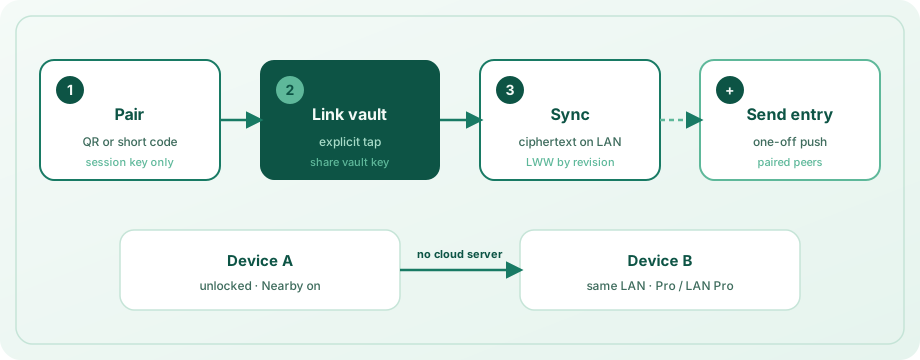
This page covers pairing, QR codes, vault link, send-entry, LAN Pro, and trust rules. Short troubleshooting: FAQ. Threat model: Security.
Requirements
- OpenKey Pro on each device that should sync (or a valid LAN Pro attestation on non–store-IAP platforms — see below)
- Both devices unlocked and on the same LAN (not guest Wi‑Fi / client isolation)
- Settings → Nearby devices started on both sides
Nearby is not a backup. Keep a Pro encrypted .okbak as well.
Discovery beacons include the device name in the clear on the LAN. Only accept devices you own. Locking the vault pauses Nearby until you unlock again.
Linux and Windows may prompt once to open LAN ports (UDP/TCP 47821, TCP 47822). Allow those prompts so peers can find this machine.
Pair devices
- Unlock OpenKey on both devices → Settings → Nearby devices.
- Turn on Visible on local network (remembered: resumes on next unlock while the vault is unlocked).
- Pair with either:
- QR (preferred): the advertising device shows a pairing QR; on the other device tap Scan pairing QR (or Paste pairing QR on Linux/Windows) — no need to type the code.
- Short code: enter the code shown on the peer within about two minutes.
- After pairing, tap Link vault so both share the same vault-key fingerprint. Pairing alone never auto-shares the vault key.
If vault keys differ, the receiving device can adopt the peer’s key (replaces local vault data after master-password confirmation). Treat link + adopt like full vault trust.
Firewall / dial-back
Some desktops (especially macOS) block inbound TCP. Linux and Windows builds may prompt once for UDP/TCP 47821 and TCP 47822. If scanning a QR fails to connect, OpenKey can ask the QR host to dial back to the guest (unicast UDP only — the pairing code is not broadcast on the LAN). Allow local-network / firewall prompts when the OS asks. Prefer the same subnet; VPNs and private relay often break discovery. Too many wrong codes trigger a short lockout.
After linking
- Changes sync automatically while both vaults are unlocked and Nearby is advertising.
- Use Sync now for a manual catch-up.
- Sync is last-write-wins by revision (same rule as the server) — edit one device at a time when possible.
- Trusted devices: after one successful pair + vault link, peers reconnect and sync whenever Nearby is on — no re-pairing.
- Trusted networks only (optional): add home/office Wi‑Fi SSIDs; Nearby pauses when the current SSID is not on the list (and blocks start if the list is empty). When the OS cannot read the SSID, Nearby may still run with a warning banner.
- Unpair to revoke LAN trust, stop sync, and clear LAN Pro claims from that peer.
Send an entry
You can push a single login to a paired peer without waiting for a full vault sync:
- Open the entry (or use the Nearby peer actions on Settings → Nearby devices).
- Choose Send to device / send entry for that peer.
- The peer receives the ciphertext over the LAN session and can store it locally.
Use this for one-off shares on the LAN; prefer organizations & sharing when peers use the same self-hosted server.
LAN Pro attestation
On platforms without store in-app purchase (typically Windows / Linux), a vault-linked Pro peer can share a LAN Pro status so the other device unlocks Pro limits over Nearby. Pairing alone is not enough — you must tap Link vault first.
- Convenience only — not a cryptographic proof of purchase.
- Android, iOS, and macOS (store IAP) ignore LAN Pro; buy or restore Pro on that store.
- Unpairing stops the attestation.
Trust summary
| Action | Trust implication |
|---|---|
| Pair | Session key with that peer on the LAN |
| Link vault | Share vault-key material — peer can sync full vault ciphertext |
| Send entry | Peer receives that entry’s ciphertext |
| LAN Pro | Peer may unlock Pro limits on non-IAP platforms |
Only pair and link with devices and people you trust. Details: Security → Threat model.
Related
- Using the app — settings map and Pro matrix
- Download
- Import & export — real backups
- FAQ
- Security
Next: Using the app · Sharing · FAQ